

 AhsayCBS
Mobile Backup (Settings) Overview for AhsayOBM
Mobile Backup Overview
The Mobile Backup tab is only available if the mobile add-on module is enabled on the user profile. Please contact your backup service provider for details.

You can use the Mobile Backup function to:
-
Add one or more device(s) registered for mobile backup.
Please refer to the Ahsay Mobile User Guide for Android and iOS for the detailed step-by-step procedure.
- View backed up photos, videos, and documents saved in the mobile backup destination.
-
Change the mobile backup destination to:
- new location in the same machine
- new machine
- Remove one or more device(s) registered for mobile backup.
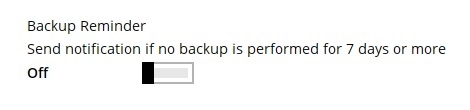
- Enable or disable the backup reminder.
View Backed up Photos, Videos, and Documents in Backup Destination
To view backed up photos, videos, and documents saved in the mobile backup destination, follow the instructions below:
-
Either click the link under the registered mobile device or click the Browse icon on the right side of the registered mobile device.
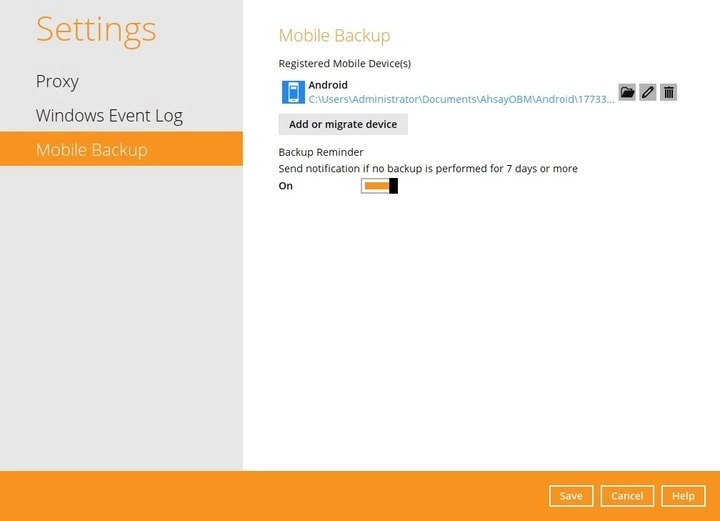
-
A new window will be displayed, double-click the blocks folder, then open the folder with the filename YYYY-MM-DD-hh-mm-ss, which is the date and time of the backup. This contains the folders where the photos, videos, documents, and 2FA accounts are saved.
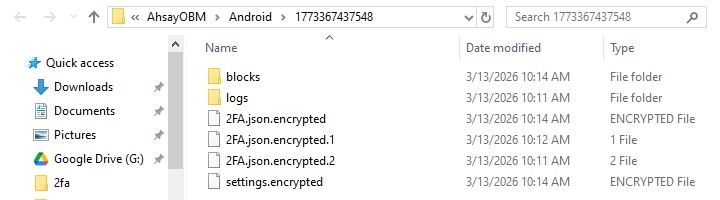
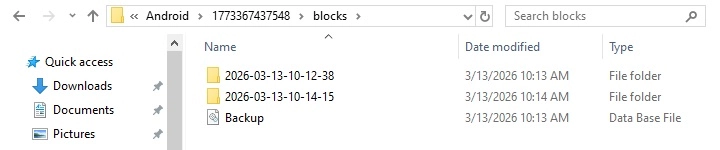

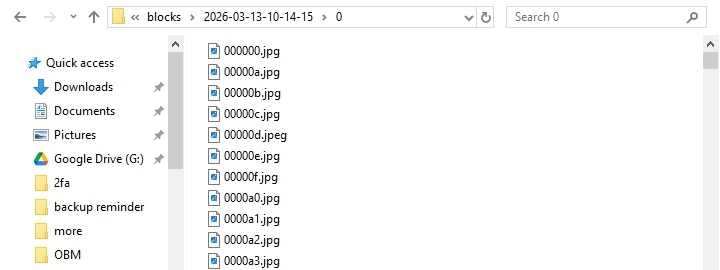
- Once done, click the X button to exit.
Change Mobile Backup Destination Location to new Location in Same Machine
There are two (2) options available when changing mobile backup destination. You can copy the previously backed up photos, videos, documents and 2FA accounts to the new location or continue to back up in the new location.
In case the previously backed up photos, videos, documents and 2FA accounts were not copied to the new location, the backup will re-upload all the photos, videos, documents and 2FA accounts again from the mobile device.
To change the mobile backup destination to another drive or folder on the AhsayOBM machine, follow the instructions below:
Example: change the backup destination from:
C:\Users\Administrator\Documents\AhsayOBM\%registered_mobile_device%\%backupsetID%to:
D:\MobileBackup- From the old location, secure a copy of the previously backed up photos, videos, documents, and 2FA accounts.
- Copy the previously backed up photos, videos, documents, and 2FA accounts from the original location to the new mobile backup destination (if applicable).
-
Go to Settings > Mobile Backup. Click the Edit icon on the right side of the registered mobile device.
In this example, the old mobile backup destination is:
C:\Users\Administrator\Documents\AhsayOBM\%registered_mobile_device%\%backupsetID% -
"Change path for Backup Destination" screen will be displayed. Select a new mobile backup destination then click OK.
In this example, the new mobile backup destination will be:
D:\MobileBackup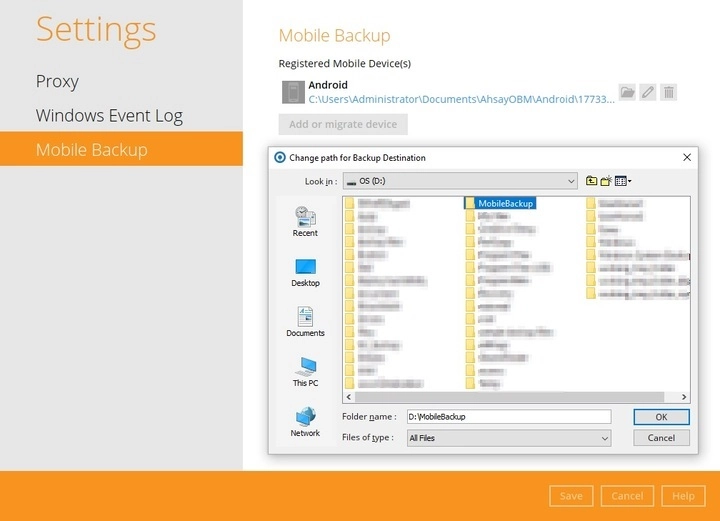
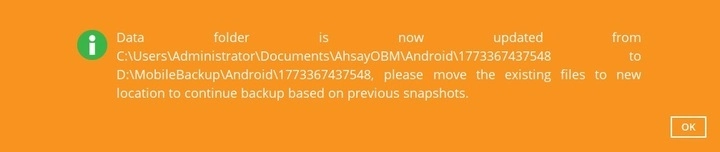
Click OK to continue.
-
Click Save to store the changes made.
Mobile backup destination is successfully changed to:
D:\MobileBackupAll mobile backups will now be saved to this destination.
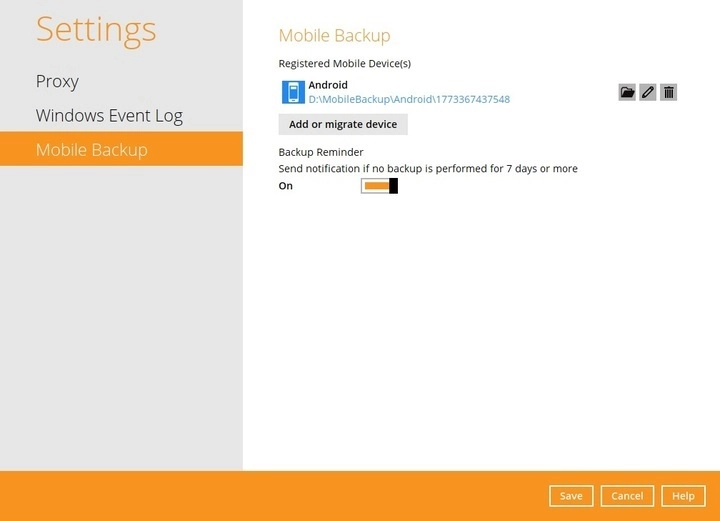
The %registered_mobile_device% and %backupsetID% will be appended automatically to the new mobile backup destination.
Change Mobile Backup Destination Location to New Machine
If the machine needs upgrading, the previously backed up photos, videos, documents, and 2FA accounts are still available.
It is strongly recommended to copy the previously backed up photos, videos, documents and 2FA accounts to the new machine to prevent missing data. Otherwise, the backed up photos, videos, documents and 2FA accounts on the mobile device will be backed up again from scratch.
- If the machine is lost or stolen, changing the mobile destination is not supported as it is required to re-register your mobile device on AhsayOBM and perform backed up photos, videos, documents, and 2FA accounts again.
- Changing the mobile backup destination to a new machine with a different operating system is supported, e.g., from a Windows machine to macOS machine or macOS machine to Windows machine etc.
To change the mobile backup destination to a new machine, follow the instructions below:
Example: Change the mobile backup destination from an old Windows machine to a new macOS machine.
-
On the new machine, install AhsayOBM.
-
Copy the .obm folder from the old Windows machine to the new macOS machine. The .obm folder is found under:
C:\Users\&username&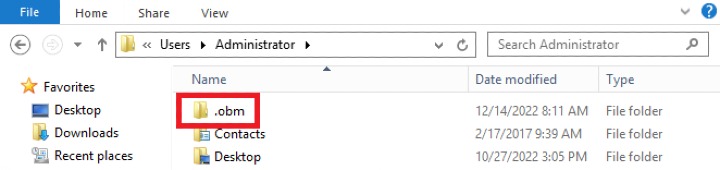
Copy the .obm folder to this path:
/Users/%username% -
Copy the previously backed up photos, videos, documents and 2FA accounts from the old machine to the new mobile backup destination
During machine upgrade, make sure to uninstall the AhsayOBM from the old machine to avoid any interruptions while backing up on the new machine.
-
Restart the AhsayOBM Services because copying the .obm folder on a newly installed AhsayOBM will not trigger the MBS.
#cd /Applications/AhsayOBM.app/bin #sh StopScheduler.sh #sh Scheduler.sh -
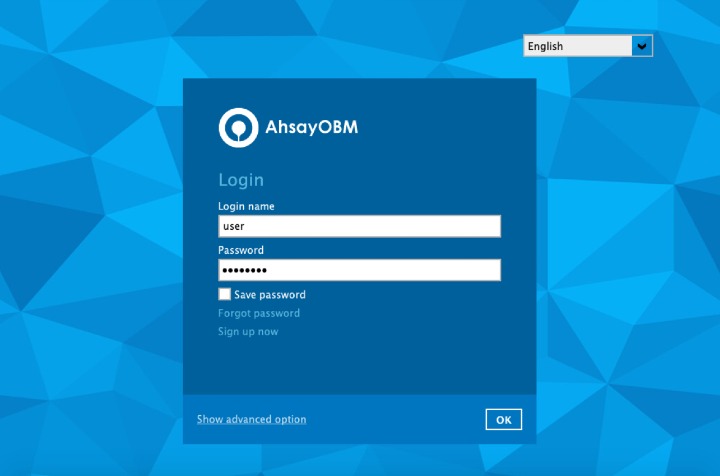
Login to AhsayOBM. Enter the login name and password of your AhsayOBM account. Then, click OK to log in.
- Go to Settings > Mobile Backup. Click the Edit icon on the right side of the registered mobile device.
-
A new screen will be displayed, select the new mobile backup destination then click Open.
In this example, the new mobile backup destination will be:
/Users/admin/Documents/MobileBackup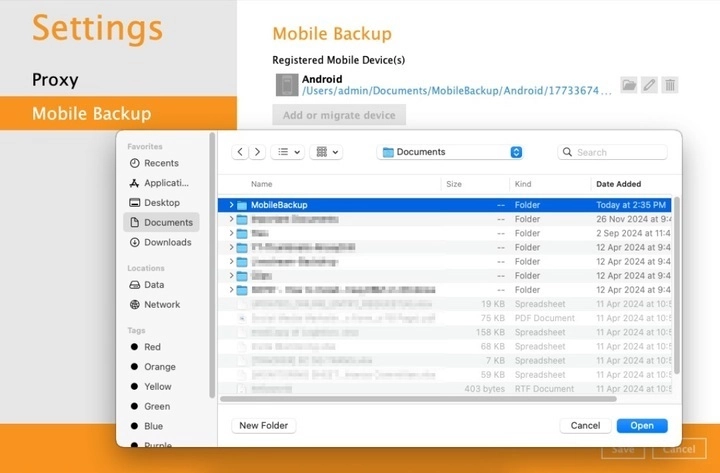
-
Click Save to store the changes made.
Mobile backup destination is successfully changed to:
/Users/admin/Documents/MobileBackupAll mobile backups will now be saved to this destination.
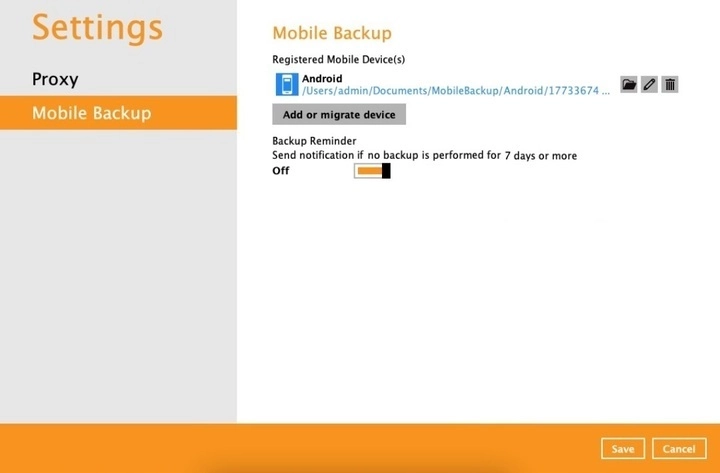
The %registered_mobile_device% and %backupsetID% will be appended automatically to the new mobile backup destination.
Remove One or More Device(s) Registered for Mobile Backup
-
Click the Delete icon on the right side of the registered mobile device.
-
A confirmation message will appear, click Yes to proceed. Otherwise, click No.
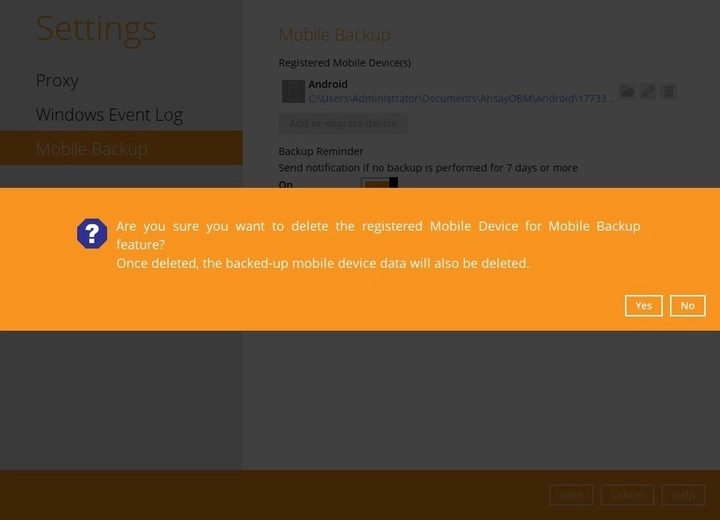
- Mobile device is successfully removed along with any photos, videos, documents, and 2FA accounts backed up in the mobile backup destination.
Configure Backup Reminder
Starting with v10.3 the Backup Reminder feature has been added to allow users to control whether they will receive a push notification if they have not performed a backup of their mobile device for 7 days onwards.
By default the Backup Reminder is enabled. To stop receiving a notification, simply disable it by switching it off.
Here is a sample notification that will be received if backup has not been done for the past 9 days.
